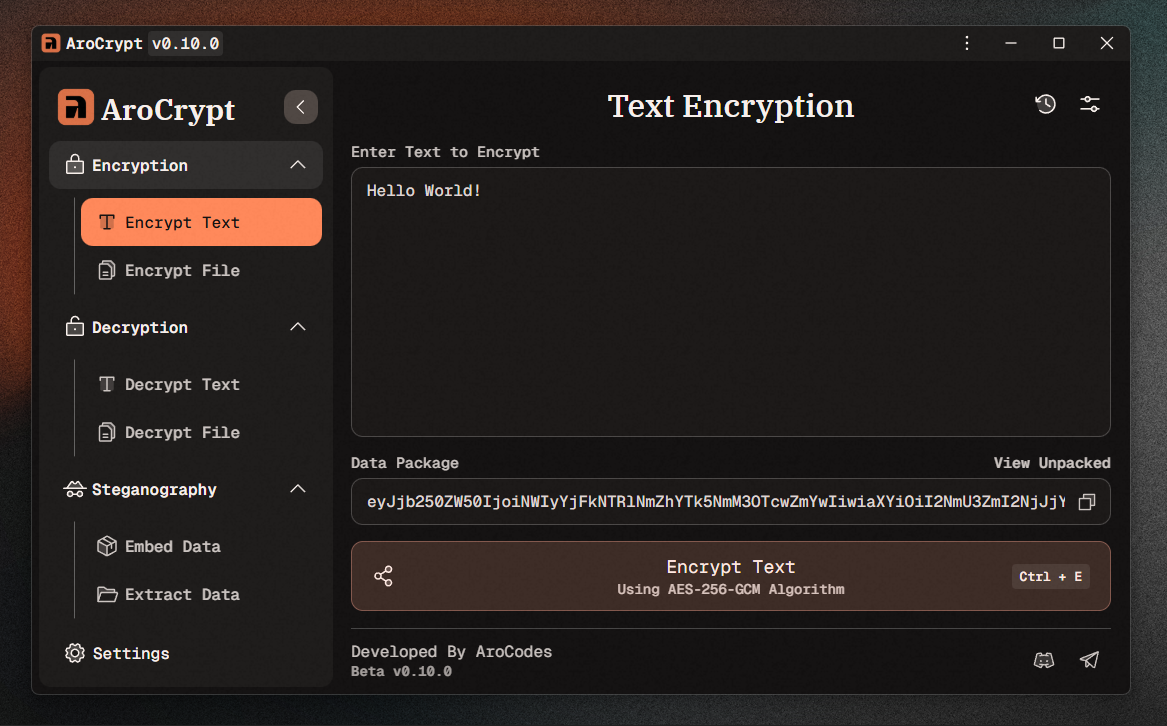
AroCrypt is a next-gen, cross-platform encryption toolkit built to keep your data locked down with zero friction. Encrypt text, files, and even images using strong, battle-tested cryptography. The interface stays clean, fast, and developer-friendly while the security stays airtight. Whether you're protecting personal notes or building secure workflows, AroCrypt delivers serious protection without the complexity.
🚀 Features
-
Text Encryption and Decryption
Secure plain text using strong AES encryption with safe shareable output. -
File Encryption and Decryption
Encrypt or decrypt any file format with reliable AES encryption. Outputs.arocryptsecure containers. -
Image Steganography
Hide files inside.pngimages with automatic encryption. Only the correct private key can extract the content. -
Cross-Platform Builds
- Windows (
x64andx32):.exeSetup and Portable - Linux (
x64):.AppImageand.deb - macOS 12+ (
x64andarm64):.dmg
- Windows (
-
Modern UI
Clean, responsive design built for fast workflows. -
Portable Options
No installation needed for Windows Portable or.AppImage. Just run and go. -
KEM-based Key Exchange
AroCrypt includes Key Encapsulation Mechanisms for safer, modern key handling without exposing sensitive data. -
Improved Encryption Engine
Faster performance, simplified data packaging, cleaner metadata handling, and upgraded security flows.
💡 How to Use
- 🔏 Encrypting Text
- Enter your text.
- Click Encrypt.
- Copy the Base64 Data Package containing public, non-sensitive data.
- 🔓 Decrypting Text
- Paste the Base64 Data Package.
- Click Decrypt to reveal the original message.
- 📁 Encrypting Files
- Select the file or files.
- Click Encrypt File(s).
- A
.arocryptfile will be generated.
- 🗝️ Decrypting Files
- Select a
.arocryptfile. - Click Decrypt File(s).
- Your original file or files will be restored.
- 🖼️ Embedding Files into PNG (Steganography)
- Pick a
.pngcontainer image. - Select the files you want to hide.
- Click Embed File(s).
- A new
.pngwith encrypted embedded data will be created.
- 🧩 Extracting Files from PNG
- Select the modified
.pngimage. - Click Extract File(s).
- You will receive the encrypted embedded files. A decryption key is still required to unlock them.
Screenshots